
How to Set Up Model Context Protocol (MCP) for Cursor & Claude Desktop
The Model Context Protocol (MCP) is an open standard pioneered by Anthropic that enables modern Large Language Models (LLMs) to safely interact with local development tools, terminal environments, and host infrastructure.
Shellit includes a native, built-in MCP server gateway. This allows your favorite development environments (such as Cursor IDE) and desktop AI assistants (Claude Desktop, Google Antigravity) to directly query server statuses, inspect active terminal buffers, and diagnose build failures — without exposing credentials and strictly governed by Prod Guard security policies.
Capabilities of the Shellit MCP Gateway
Connecting Shellit to Claude Desktop or Cursor equips the AI with specialized infrastructure tools:
shellit_list_servers: Returns configured hosts (without private keys or secrets!) including their environment badges (PROD,STAGE,DEV).shellit_list_active_sessions: Lists open terminal sessions and their descriptors.shellit_get_terminal_buffer: Reads the latest $N$ lines from an active terminal buffer (ideal for troubleshooting compiler errors or Docker crash loops).shellit_exec_command: Executes commands inside active sessions, subject to real-time Prod Guard validation.shellit_read_remote_file: Inspects remote files securely over SFTP.
Step 1: Enabling the MCP Server in Shellit
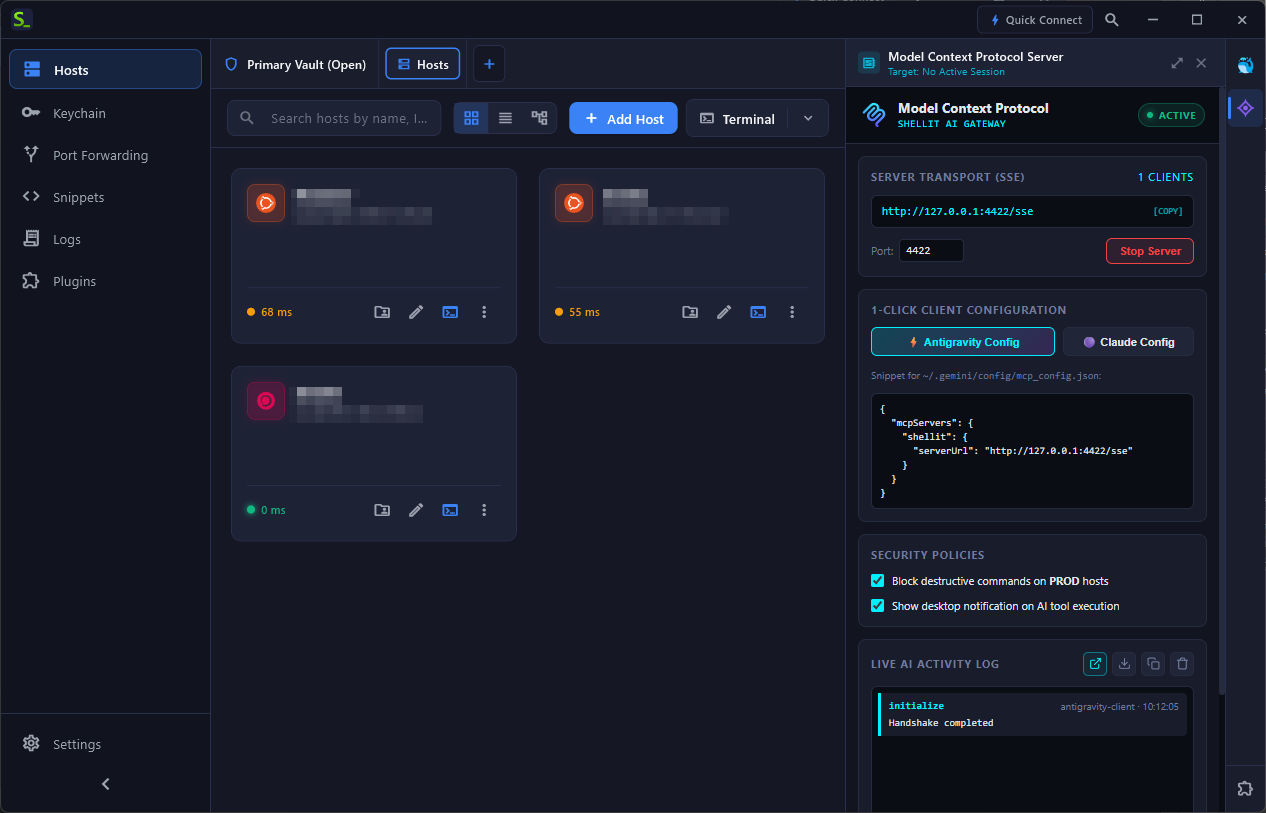
- Open Shellit and navigate to the AI & MCP tab in the sidebar.
- Toggle the MCP Server Gateway switch to Enabled.
- By default, the server binds to local loopback
127.0.0.1:4422. - In the security settings, verify that “Enforce confirmation on PROD environments” is checked.
Step 2: Configuring Claude Desktop
To register Shellit with the Claude Desktop client:
- Open the Claude Desktop configuration file:
- Windows:
%APPDATA%\Claude\claude_desktop_config.json - macOS:
~/Library/Application Support/Claude/claude_desktop_config.json - Linux:
~/.config/Claude/claude_desktop_config.json
- Windows:
- Add the
shellitentry undermcpServers:
{ "mcpServers": { "shellit": { "command": "node", "args": ["-e", "require('http').request('http://127.0.0.1:4422/message')"] } }}- Restart Claude Desktop.
- The hammer icon in the bottom-right corner of the chat input will display Shellit’s registered tools.
Step 3: Configuring Cursor IDE
Cursor IDE provides first-class native MCP support in its settings UI:
- Open Cursor Settings (
Ctrl+,orCmd+,). - Navigate to Features → MCP Servers in the sidebar.
- Click Add New MCP Server.
- Configure the server connection:
- Name:
shellit - Type:
sse - URL / Endpoint:
http://127.0.0.1:4422/sse
- Name:
- Click Save. The status indicator will turn green (Active).
Practical AI Prompt Examples
You can now collaborate with Claude or Cursor using natural language while maintaining complete control over terminal execution:
1. Root Cause Analysis for Crashed Daemons
“Inspect the active terminal buffer on api-node-1 and explain why the Node.js process terminated with exit code 1.”
Claude invokes shellit_get_terminal_buffer, pinpoints the fatal stack trace, and immediately proposes an actionable fix.
2. Fleet Health Diagnostics
“Check available disk space and memory utilization on all stage cluster nodes.”
3. Prod Guard Defense Against Unsafe AI Actions
If an AI agent suggests or attempts to execute a destructive command like rm -rf /var/lib on a production host:
- Shellit’s MCP gateway intercepts the request before it reaches the PTY stream.
- Execution is immediately blocked.
- The AI receives a security policy rejection: “Execution blocked: Prod Guard policy forbids destructive operations on PROD-tagged hosts”.